Pulse Annotate
Install Pulse Annotate, capture numbered webpage feedback, manage side panel history, and export sessions for QA review.
Last reviewed
What Pulse Annotate is
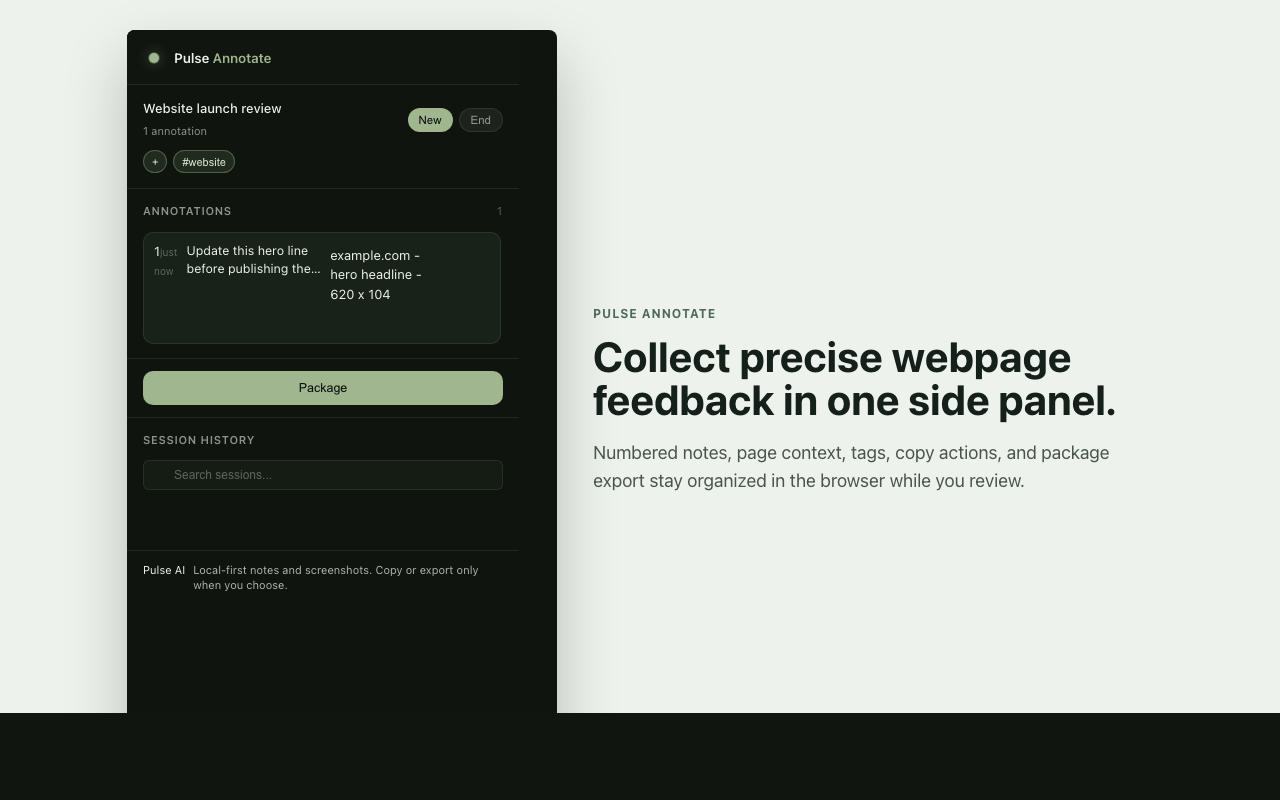
Pulse Annotate is the browser add-on for webpage QA and review. It lets you place numbered markers on a page, write notes, capture screenshots, keep session history in the side panel, and export a review package for Pulse AI, another LLM, or a human reviewer.
Pulse Annotate is not Pulse Record and it is not Pulse Narrate. Annotate is the Chrome extension for visual webpage feedback.
In this guide
| Reader question | Section | What you will learn |
|---|---|---|
| When should I use it? | Visual feedback loop | How to turn page context into numbered review notes. |
| What does it produce? | Annotation package | What copy and export include for the next reviewer. |
| What permissions are needed? | Browser permissions | Why each public Chrome permission is requested. |
| How do I recover when it fails? | Recovery | What to check for markers, screenshots, clipboard, and history. |
When to use it
Use Pulse Annotate when the problem is visual and the reviewer needs to see the exact page state. It is the right workflow for layout defects, wrong copy in context, broken controls, spacing issues, regression screenshots, and annotation-driven remediation.
Do not use Pulse Annotate for spoken input or deliverable voiceover. Use Pulse Record when you need to dictate text into a target app. Use Pulse Narrate when Pulse AI needs to generate audio proof for a response or deliverable.
Visual feedback loop
Pulse Annotate turns a page review into a visual feedback loop:
- Open the page state that needs review.
- Start a fresh Annotate session from the side panel.
- Place one marker on the exact UI target.
- Write the note as observed issue, expected change, and acceptance detail.
- Repeat only for issues that belong to the same review pass.
- Copy a focused annotation or export the full annotation package for the owner.
The visual marker is the source of truth. Text notes explain the marker; they do not replace it.
What it produces
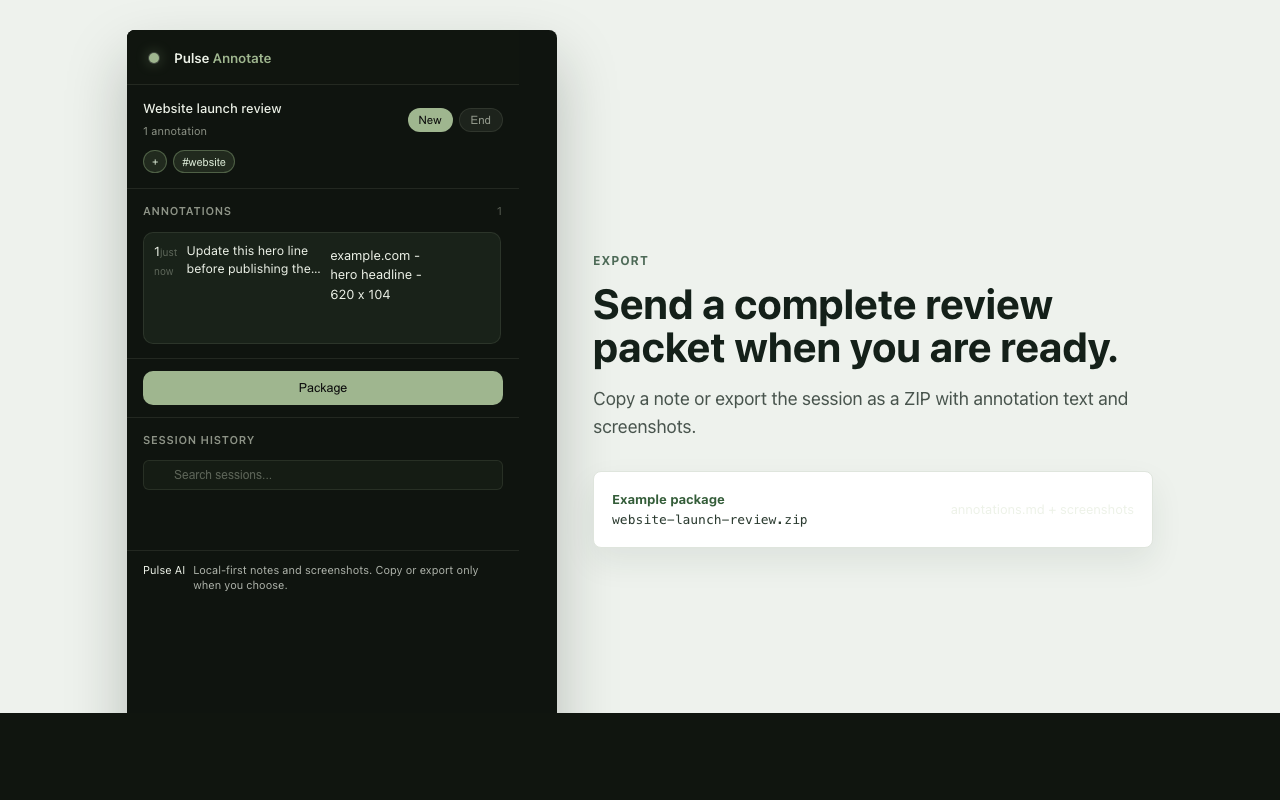
Pulse Annotate produces an annotation package for review. A good package contains the page URL, session context, numbered markers, written notes, screenshots when capture is available, and copy/export output that can be attached to a task, Knowledge Item, or support thread.
Use copy for a single focused note. Use export when the reviewer needs the whole session history or when browser clipboard image handling is unreliable.
Install and setup
Use the public Chrome Web Store build when available, or install the reviewed public ZIP supplied by the Pulse AI release process.
- Open Chrome's Extensions page.
- Enable developer mode only if you are loading a local release ZIP during review.
- Load or install Pulse Annotate.
- Pin the extension if you want quick access from the toolbar.
- Open a page you want to review.
- Click Pulse Annotate and open the side panel.
The current public manifest is a Chrome Manifest V3 extension named Pulse Annotate. It uses side_panel.default_path: sidepanel.html, a background service worker, and one content overlay script for page markers.
Permissions to expect
Pulse Annotate asks for permissions that support user-initiated webpage annotation:
storagekeeps sessions, annotations, screenshots, tags, and side panel state locally.activeTabsupports active-page screenshot capture and user-initiated page work.tabsreads the active tab title and URL so exported notes have review context.sidePanelopens the side panel surface.scriptinginjects the annotation overlay when needed.unlimitedStorageprotects screenshot-heavy sessions from default quota limits.clipboardWritesupports copy actions.downloadssaves session ZIP exports.<all_urls>lets you annotate arbitrary webpages you choose to review.
Chrome-restricted pages can still block capture or injection. That is expected browser behavior, not a Pulse AI account failure.
The current public manifest declares sidePanel, activeTab, downloads, and <all_urls> host access for the user-selected pages you review.
Session markers
When Annotate is active, clicking a page target creates a numbered marker and opens the composer. The marker number corresponds to the annotation record in the session. Use concise notes that name the expected change, the observed problem, and any acceptance detail the reviewer needs.
Good marker notes include:
- The visible issue.
- The expected behavior.
- Whether the issue is blocking or polish.
- Any account, viewport, or browser condition needed to reproduce it.
End a session when the review is complete so future markers do not mix with an older pass.
Side panel history
The side panel is the control center for active and past sessions. It shows session names, created time, tags, annotation counts, and ended state. Use tags to group sessions by surface, QA pass, release, or customer flow.
The side panel history is local to the browser profile. If you change Chrome profiles, clear extension data, or install a different extension build, prior sessions may not appear.
Copy and export behavior
Pulse Annotate supports two review handoff paths:
- Copy actions write user-requested annotation packets to the browser clipboard.
- Export actions save a session ZIP package to Downloads.
The public build does not request nativeMessaging. The repository still contains a native pasteboard bridge for internal/native release paths, but that is not part of the public Chrome Web Store build. In the public build, file attachment behavior depends on normal browser clipboard support.
Session ZIP exports are intended for review and archive. They include session context, annotation notes, and screenshots when available.
QA workflow
Use Annotate when a visual issue needs page context.
- Start a fresh session for the flow under review.
- Capture one issue per marker.
- Use tags that match the QA pass or launch task.
- Copy a single annotation when you only need one focused note.
- Export the full session when the reviewer needs the whole path.
- Attach the ZIP or pasted packet to the task, Knowledge Item, or support thread that owns the work.
For launch review, keep the session tied to one product surface. Do not combine unrelated pages into a single session unless the problem is explicitly cross-page.
Recover when it fails
If the side panel opens but markers do not appear, reload the webpage and reopen Annotate. Some pages block extension scripts or run inside frames Annotate does not target.
If screenshot capture fails, check whether the current page is a Chrome internal page, extension page, protected browser surface, or permission-restricted context.
If clipboard image copy is inconsistent, use the ZIP export. Browser image clipboard writes are best-effort and can vary by Chrome version and destination app.
If history disappears, check the Chrome profile and whether extension storage was cleared. Annotate stores sessions locally.
If a downloaded package is missing expected screenshots, rerun the capture on the visible page state and export again.
Multiple Pulse Annotate copies
If Pulse Annotate behaves differently from another copy on the same computer, open chrome://extensions and inventory every Pulse Annotate entry before changing code or permissions. Compare the version footer at the bottom of each side panel and keep the current reviewed version enabled.
Each extension ID has separate local storage. Before removing an older or duplicate copy, open that copy and export any sessions you need to preserve. Then disable the stale copy first, verify the current copy on the same page, and remove the stale copy only after the exported package is safe.
An unpacked developer checkout can use a path-derived extension ID. Reviewed public ZIPs use the Chrome Web Store identity so loading the same release from another folder does not create a second independent Pulse Annotate data store.
Troubleshooting belongs in Help Center once the product behavior is clear. Start with Pulse Annotate support, Pulse Annotate side panel will not open, and Pulse Annotate clipboard copy is not working.